Gateway Management
What is a gateway?
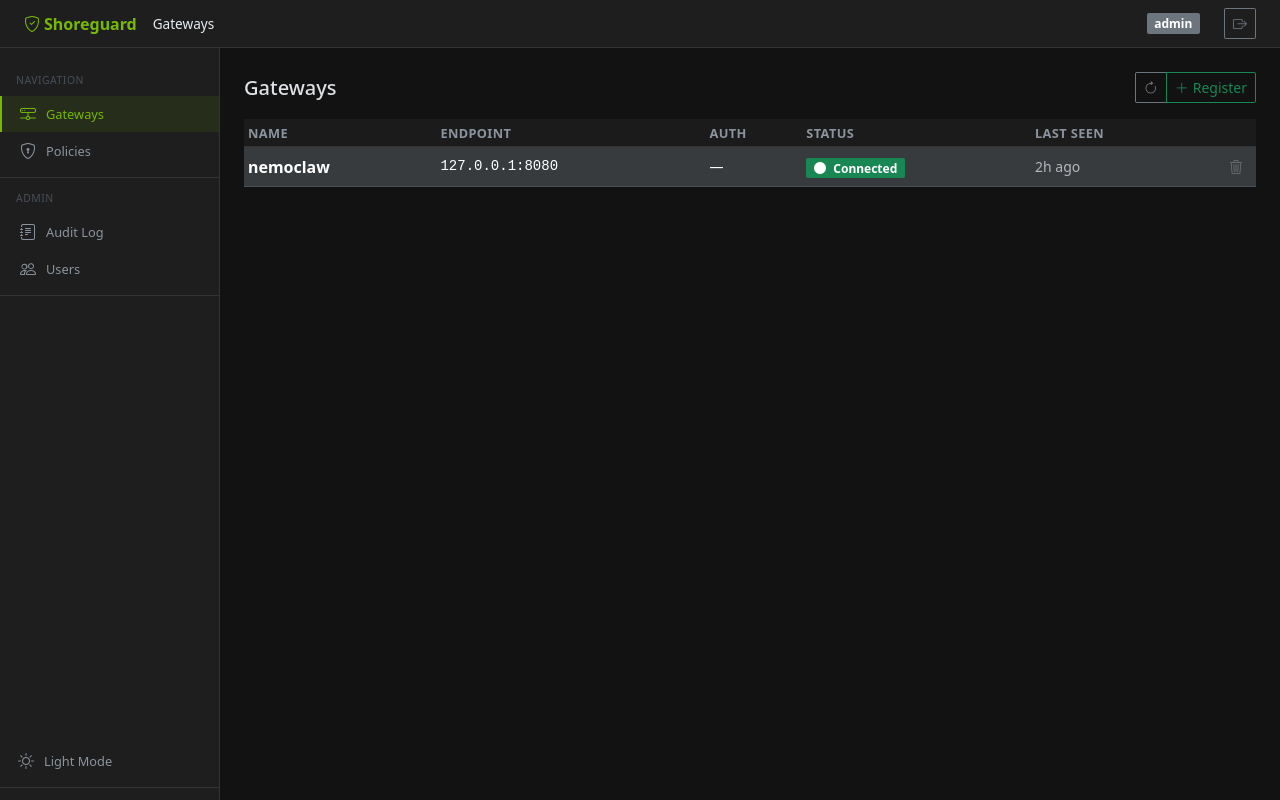
A gateway is an NVIDIA OpenShell instance that runs sandboxes. Each gateway exposes a gRPC endpoint that ShoreGuard connects to for sandbox management, policy editing, and log streaming. You can register as many gateways as you need and manage them all from the ShoreGuard dashboard.
Registering a gateway
Via the Web UI
Open the Gateways page and click + Register. Fill in the gateway name, endpoint URL, authentication mode, and — if using mTLS — upload the certificates. You can also add an optional description and labels (key=value pairs) to help organise your fleet.
Via the REST API
POST /api/gateway/register
Content-Type: application/json

{
  "name": "production-gw",
  "endpoint": "10.0.0.5:8443",
  "auth_mode": "mtls",
  "ca_cert": "...",
  "client_cert": "...",
  "client_key": "...",
  "description": "Production EU-West for ML team",
  "labels": {"env": "prod", "team": "ml", "region": "eu-west"}
}
Supported authentication modes
| Mode | Description |
|---|---|
mtls |
Mutual TLS with CA, client certificate, and client key |
api_key |
API key passed in gRPC metadata |
none |
No authentication — development/testing only |
Description & labels
Each gateway can have a free-text description (up to 1 000 characters) and up to 20 labels (Kubernetes-style key=value pairs). Labels enable filtering in the API and help organise large fleets.
- Description — visible in the gateway list and detail pages.
- Labels — shown as badges, filterable via
GET /api/gateway/list?label=env:prod&label=team:ml(AND semantics).
You can edit description and labels after registration from the gateway detail page (click Edit) or via the API:
PATCH /api/gateway/{name}
Content-Type: application/json

{
  "description": "Updated description",
  "labels": {"env": "staging", "team": "infra"}
}
Label keys must match [a-zA-Z0-9][a-zA-Z0-9._-]* (max 63 chars). Values
are free-text strings up to 253 characters.
Health monitoring
ShoreGuard probes each registered gateway approximately every 30 seconds.
The dashboard shows the current status and a last_seen timestamp so you can
spot connectivity issues at a glance.
Testing a connection
You can trigger an explicit connection test at any time:
- Web UI — click the Test button next to the gateway entry.
- API — call the gateway test endpoint.
The test performs a full gRPC health check and reports the result immediately.
Gateway detail
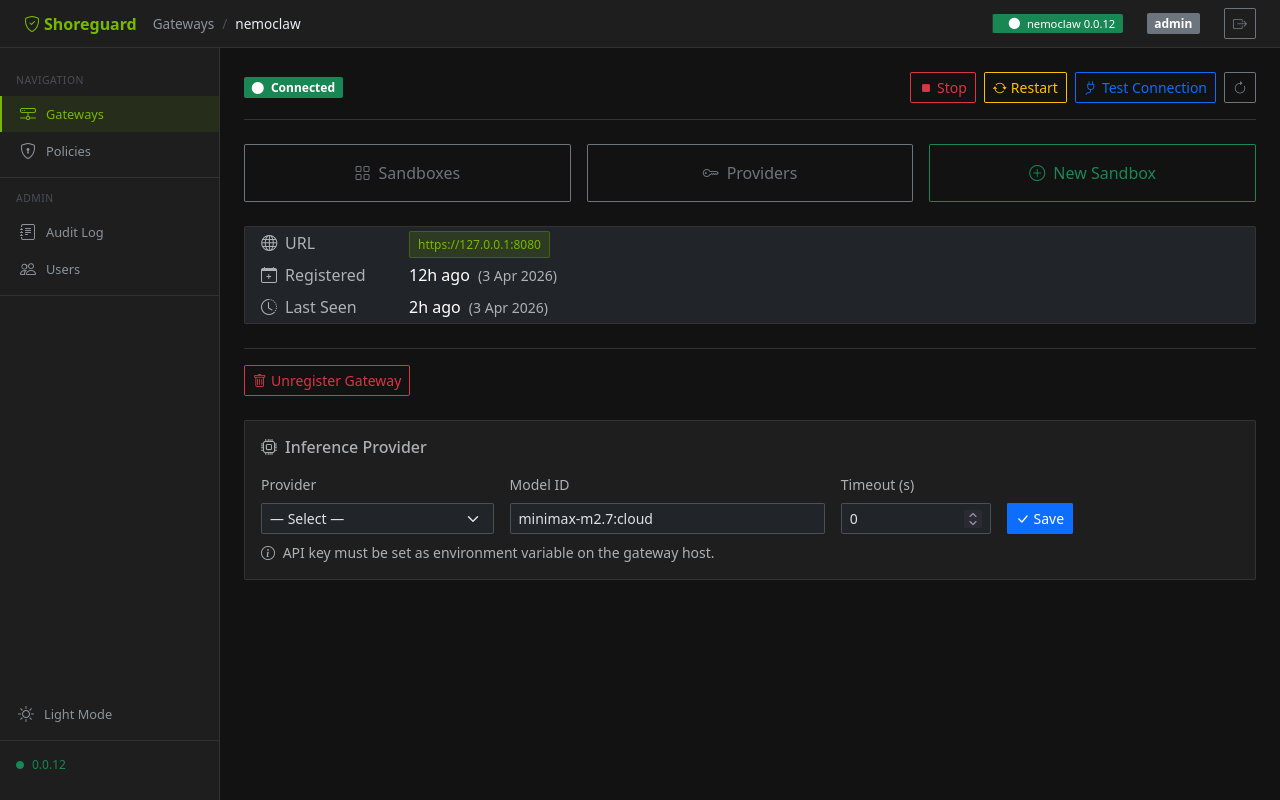
Each gateway has a dedicated detail page at /gateways/{name} showing status,
connection info, and management controls.
Start, Stop, and Restart
When running in local mode, the gateway detail page shows Stop, Restart, and Test Connection buttons to manage the Docker-based gateway lifecycle directly from the browser.
Inference provider
The Inference Provider card lets you configure which LLM provider and model the gateway uses for agent inference. You can also set a per-route timeout in seconds (0 uses the default of 60s) — useful for large models with long response times.
Resolved Inference Bundle (M20)
Since v0.30.2, the gateway detail page includes a Resolved Inference
Bundle panel that renders the fully resolved inference config in
one place: the cluster default, every route (including the
sandbox-system route OpenShell v0.0.25+ uses for sandbox system-level
calls), and a per-route credential shield badge so you can see at a
glance which routes carry an API key. API keys are redacted to a
boolean (has_api_key) at the ShoreGuardClient boundary — the UI
never handles secret material.
Scrape the same view programmatically:
The endpoint is viewer-accessible and audit-logged. See the API reference.
Auto-registering via DNS SRV
Gateways can also be auto-discovered via _openshell._tcp.<domain>
SRV records — see Gateway Discovery.